WoTS 2026 Gadget

EMIsniffer

Bedienungsanleitung

Anleitung auf dieser Seite

Kapitel 2–6 der gedruckten Anleitung, fuer die Darstellung auf dem Smartphone aufbereitet. Fotos der Montageschritte sind unten enthalten; die PDF-Buttons oben oeffnen das vollstaendige Dokument.

2. Main Parts

The exploded view below shows the main mechanical and electronic parts of the EMI Sniffer.
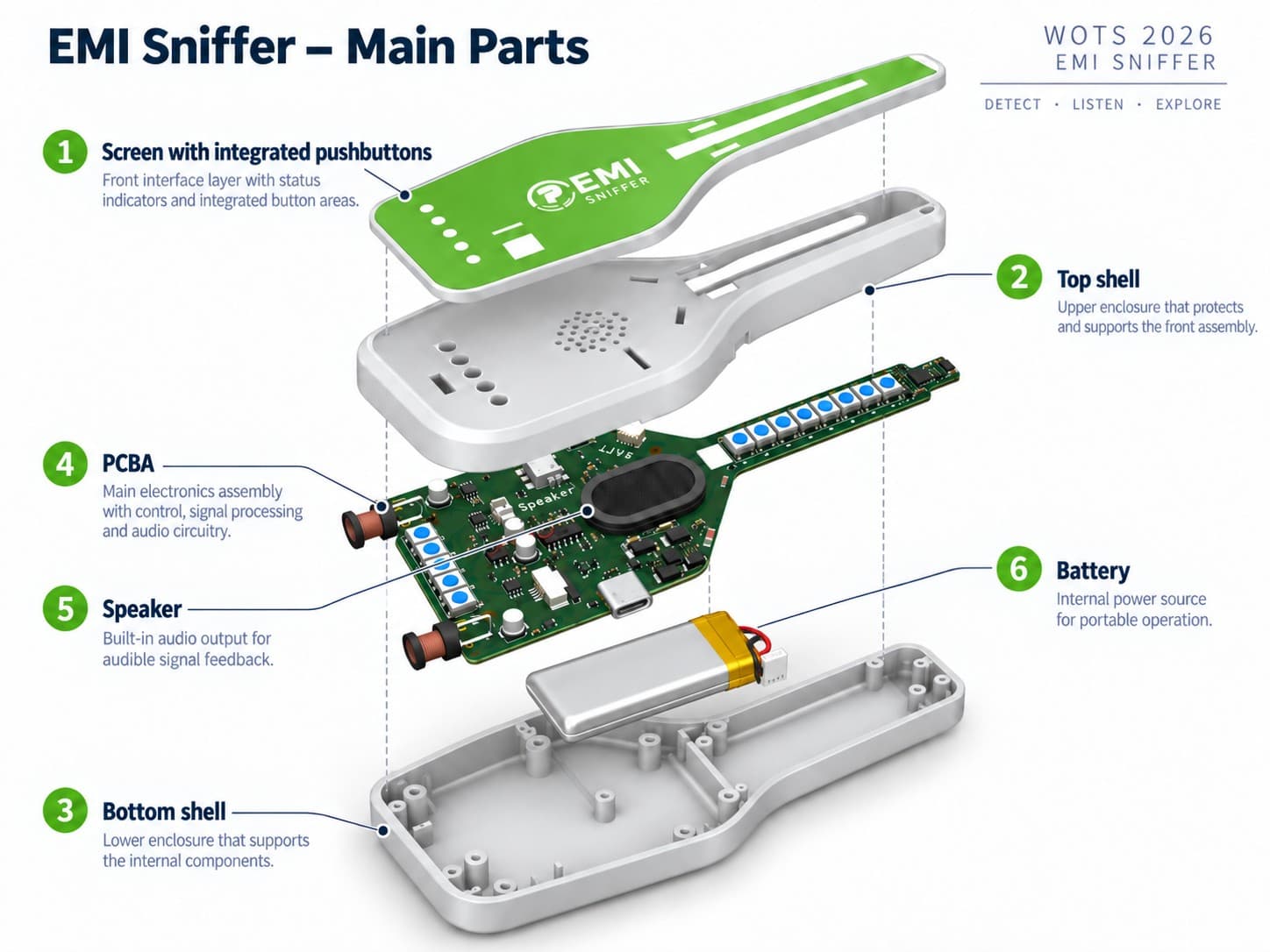
Exploded view of the EMI Sniffer main parts
  • 1. Screen with integrated pushbuttons — Front interface layer with the integrated button areas and windows for the indicators.
  • 2. Top shell — Upper enclosure that protects and supports the front assembly.
  • 3. Bottom shell — Lower enclosure that supports the internal components.
  • 4. PCBA — Main electronics assembly containing the sensing, signal-processing, control, charging and audio circuitry.
  • 5. Speaker — Mounted separately on the top shell, used for audible signal feedback. The audio represents a modulated audio frequency from the measurement of the low-frequency side of the Sniffer.
  • 6. Battery — Internal rechargeable battery. The connector end is positioned on the right-hand side of the enclosure.
3. PCBA Overview

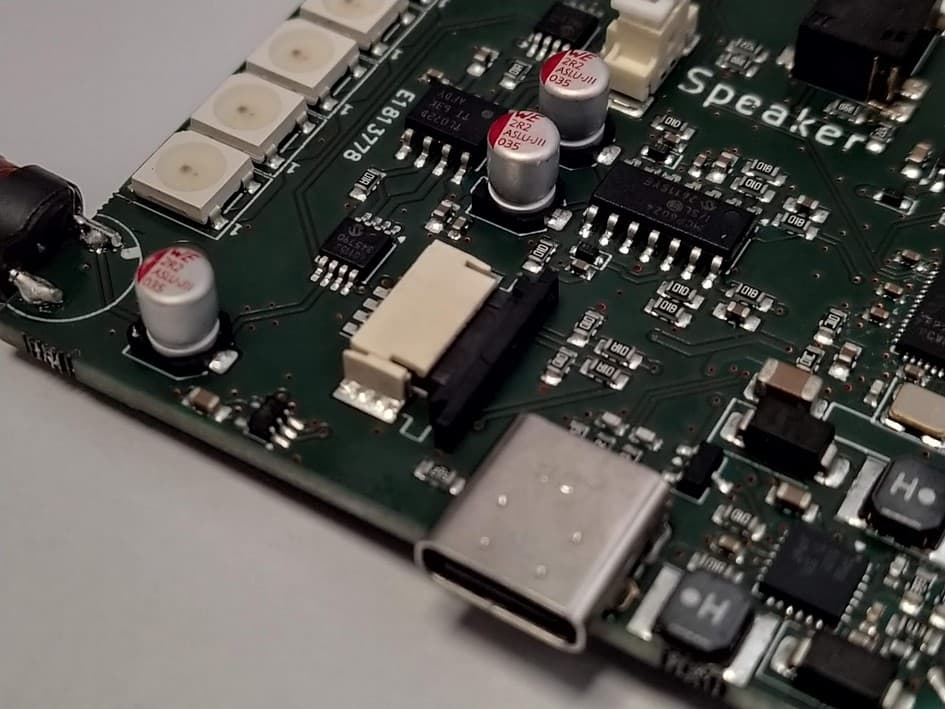
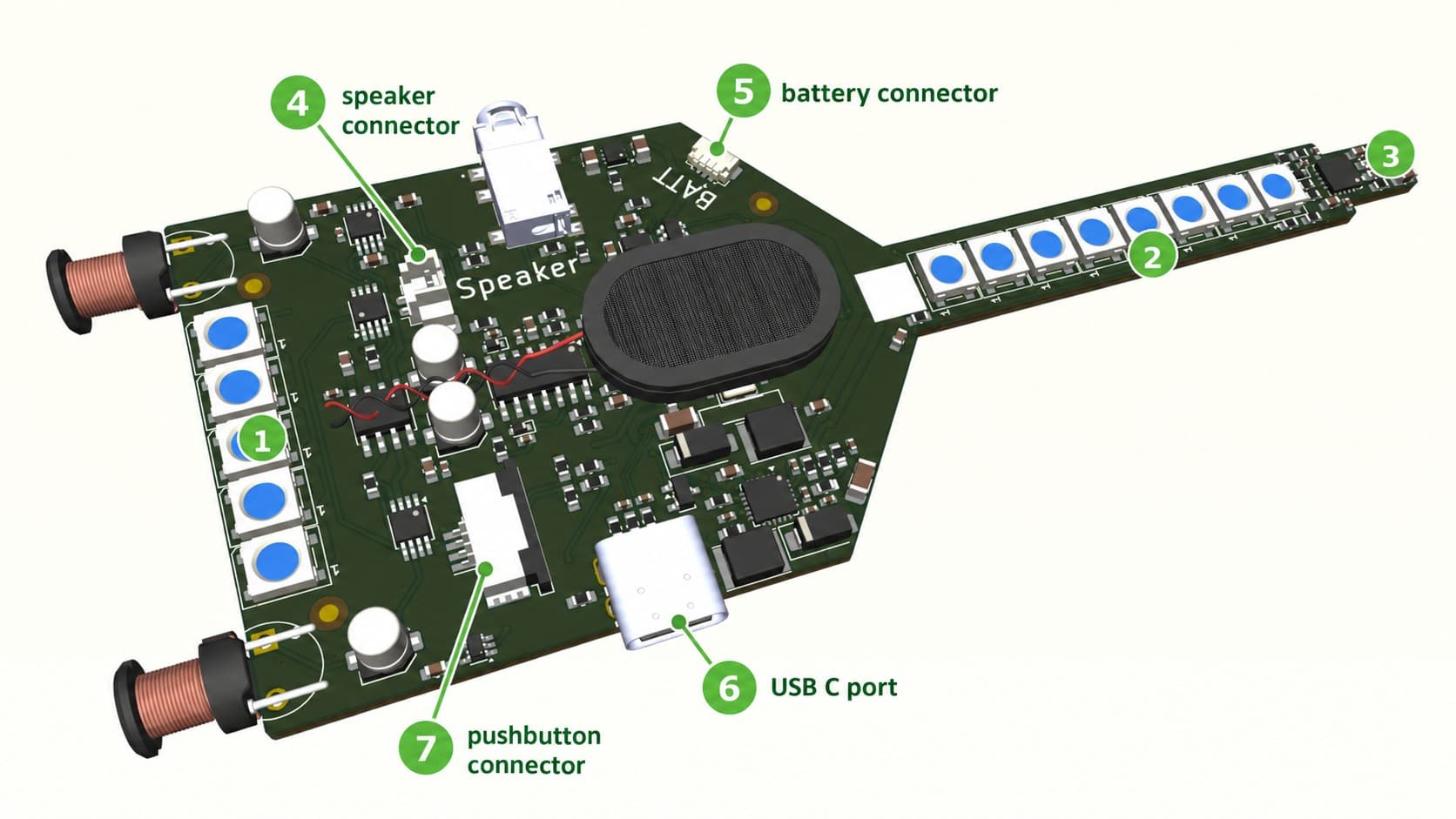
The PCBA combines the sensors, visual indicators, audio output, power management and the Raspberry Pi RP2354 microcontroller on a single assembly.

PCBA overview with numbered connectors and indicators
  • 1. Five LEDs for cable localization — Visual feedback used to help locate a cable.
  • 2. Eight LEDs for EMI — Visual indication of the relative EMI detection level.
  • 3. Front EMI detection coil — Sensing coil at the narrow front end of the PCBA.
  • 4. Speaker connector
  • 5. Battery connector
  • 6. USB-C port
  • 7. Pushbutton connector

4. Assembly

The EMI Sniffer consists of only a few main parts and is designed for straightforward assembly.

1. Fit the screen

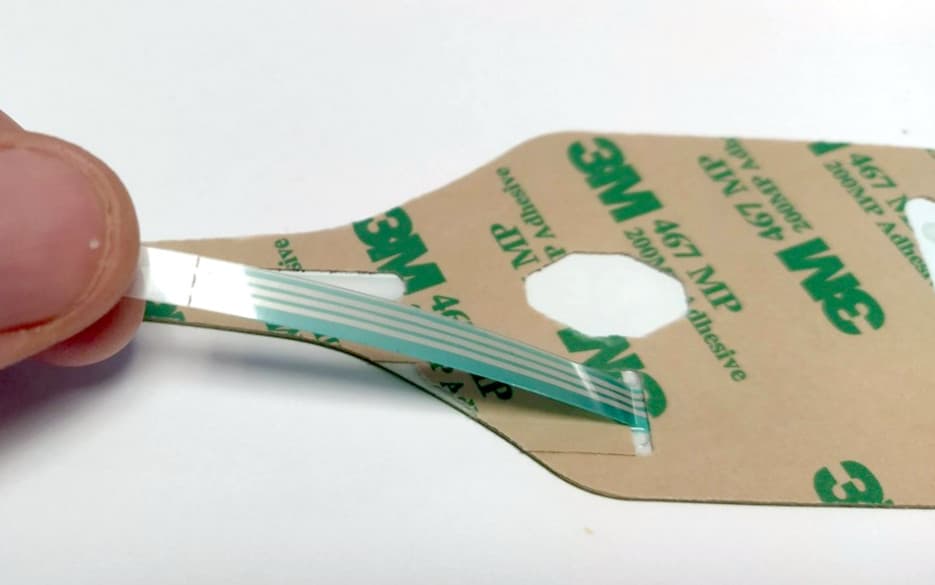
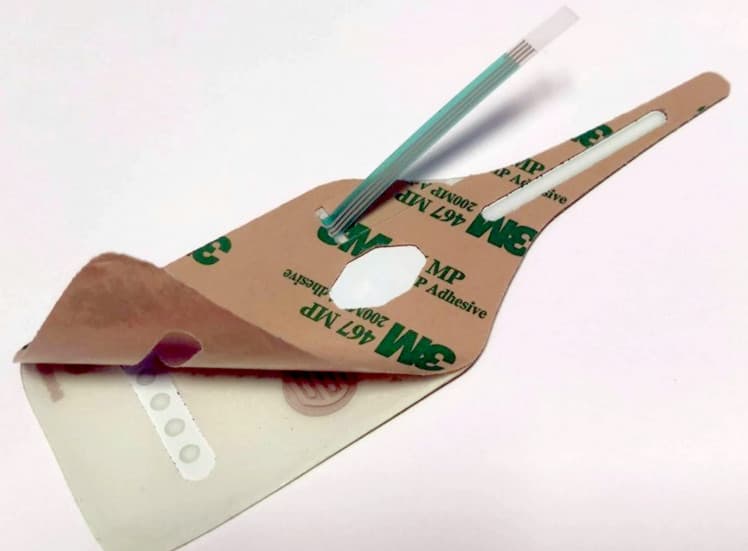
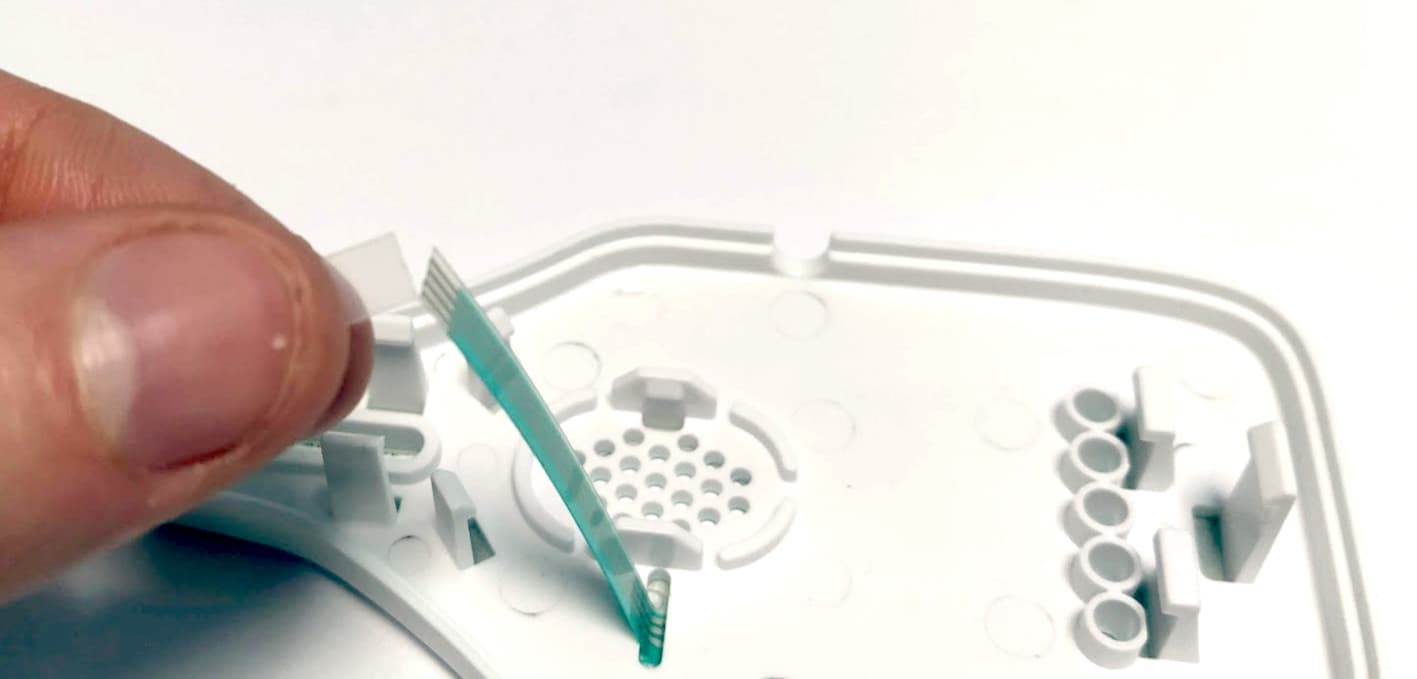
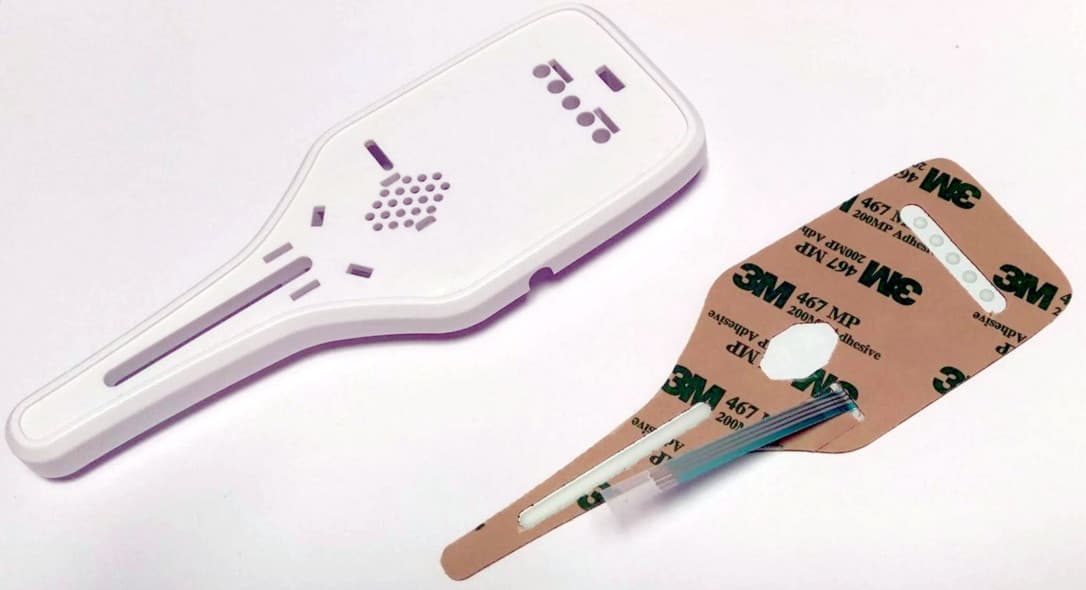
Position the screen with integrated push buttons on the top shell. Remove the backing to expose the adhesive side — note that the protective layer is rather thin and flexible. Route the FPC connector through the top shell. Align the interface with the LED openings and the corresponding controls underneath and stick it on. Remove the protective, transparent, end-part of the FPC connector by carefully tearing it where the connector tracks end.

Top shell next to adhesive screen backing
Peeling the FPC from the adhesive backing
Screen adhesive partially peeled, showing contact pads
Routing the FPC through the top shell

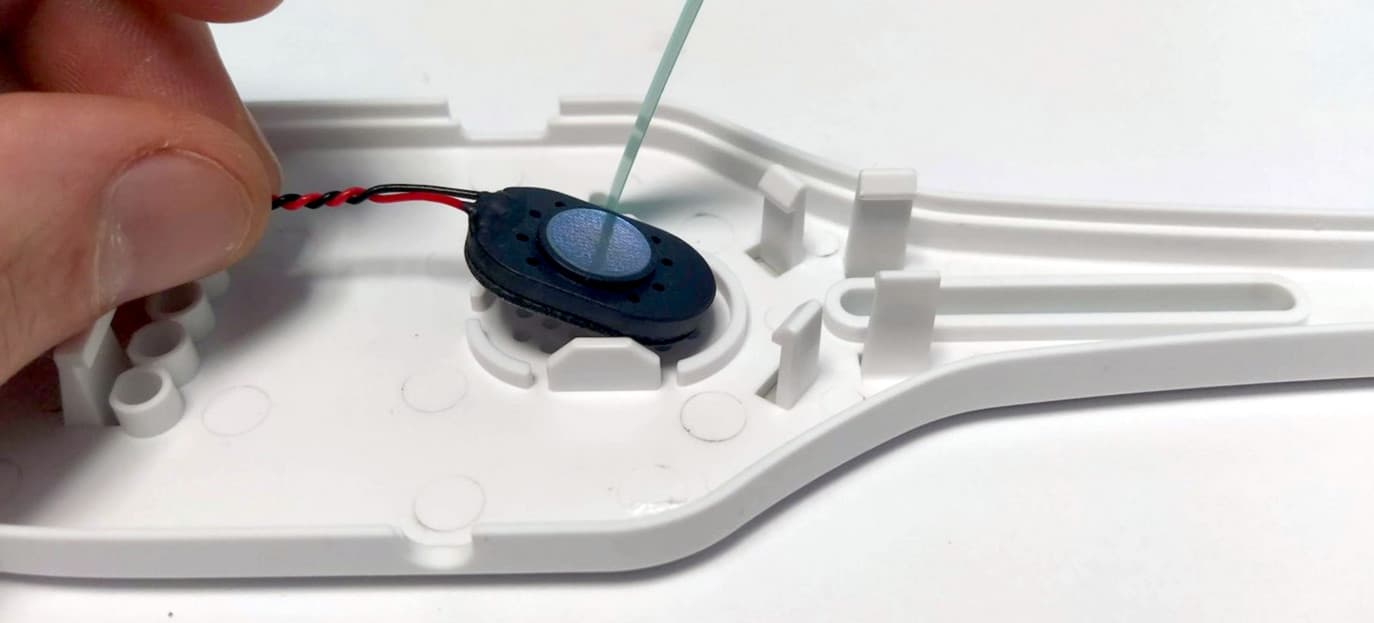
2. Fit the speaker

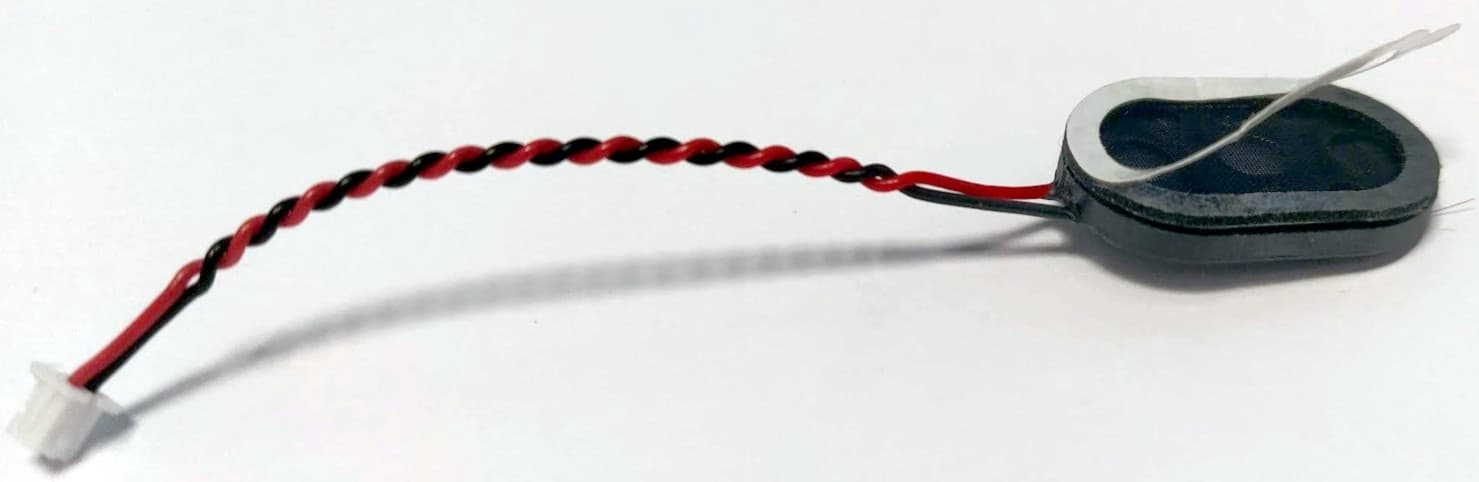
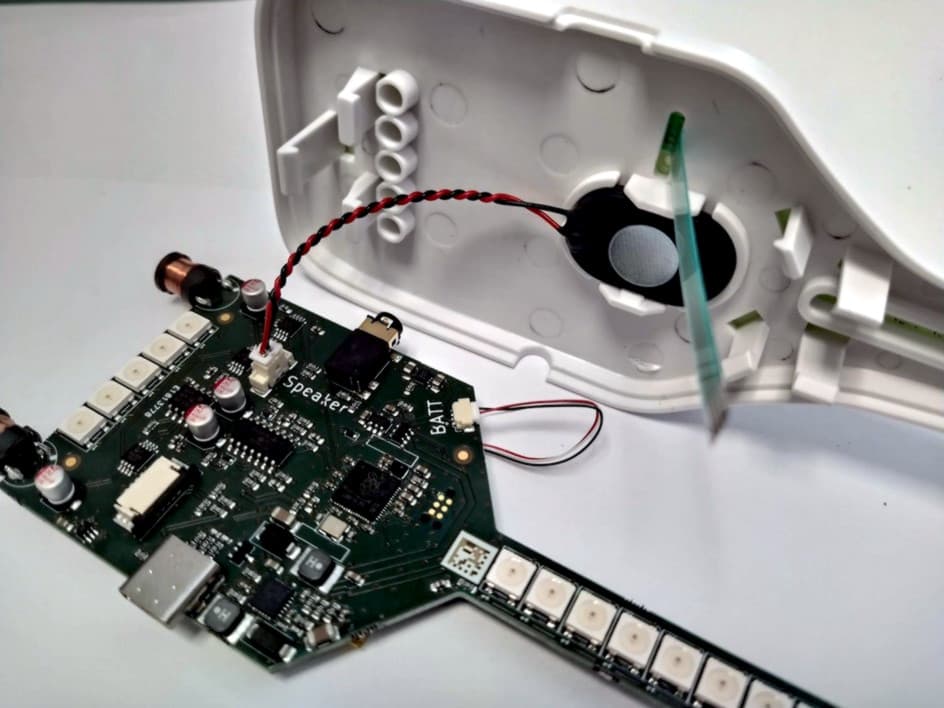
The speaker sits in a recess with clips and has an adhesive edge. Remove the adhesive cover and push the speaker into its location with the wires toward the back of the EMI Sniffer.

Speaker with adhesive edge and connector
Fitting the speaker into the top shell

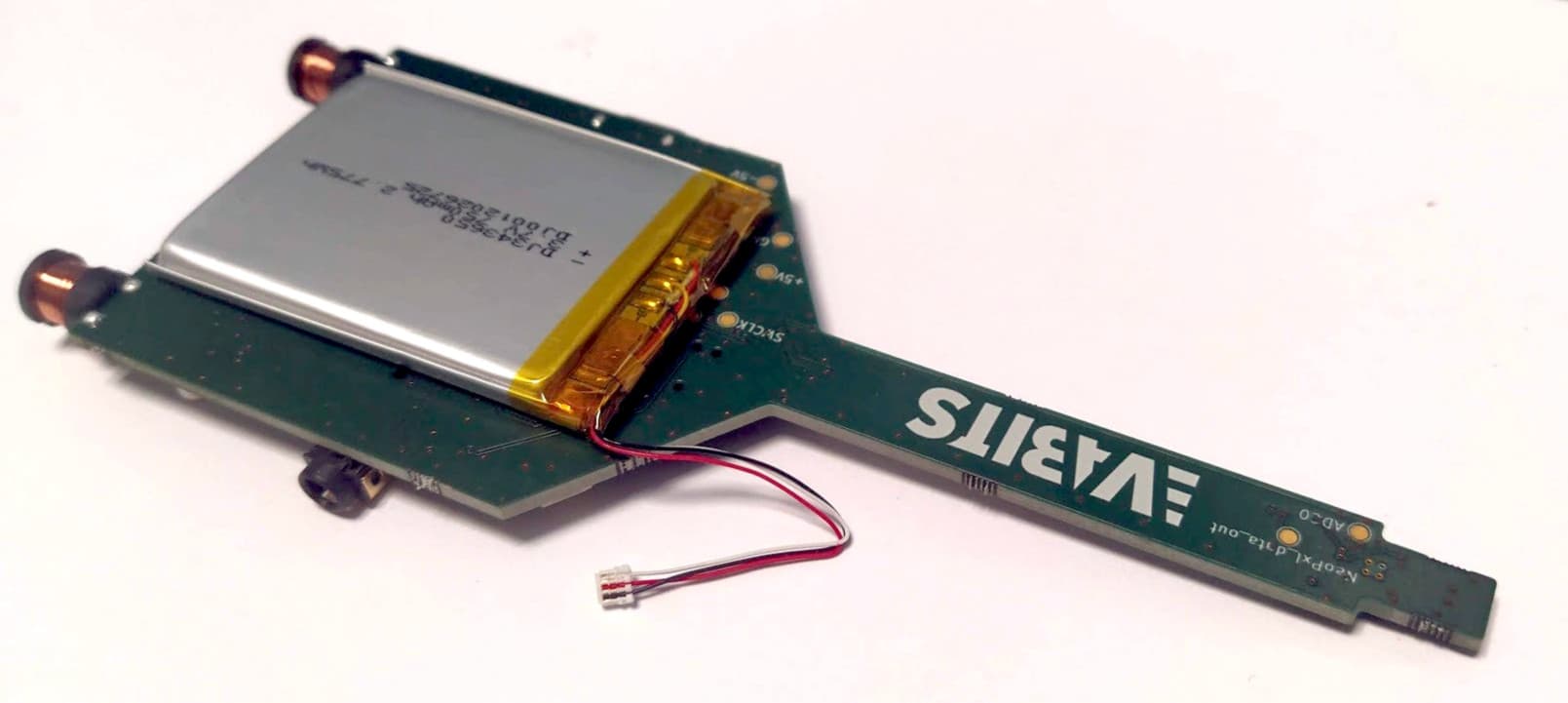
3. Install the battery

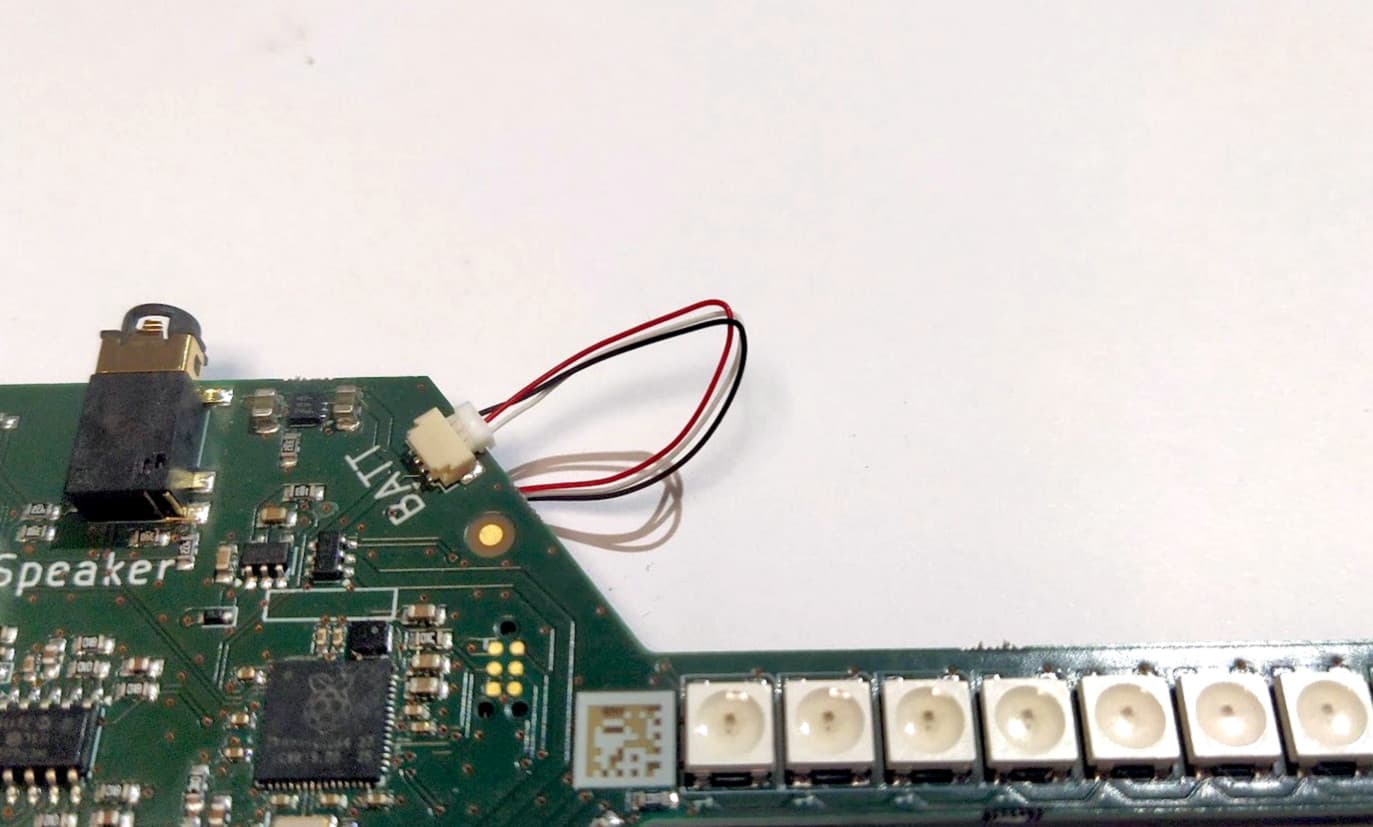
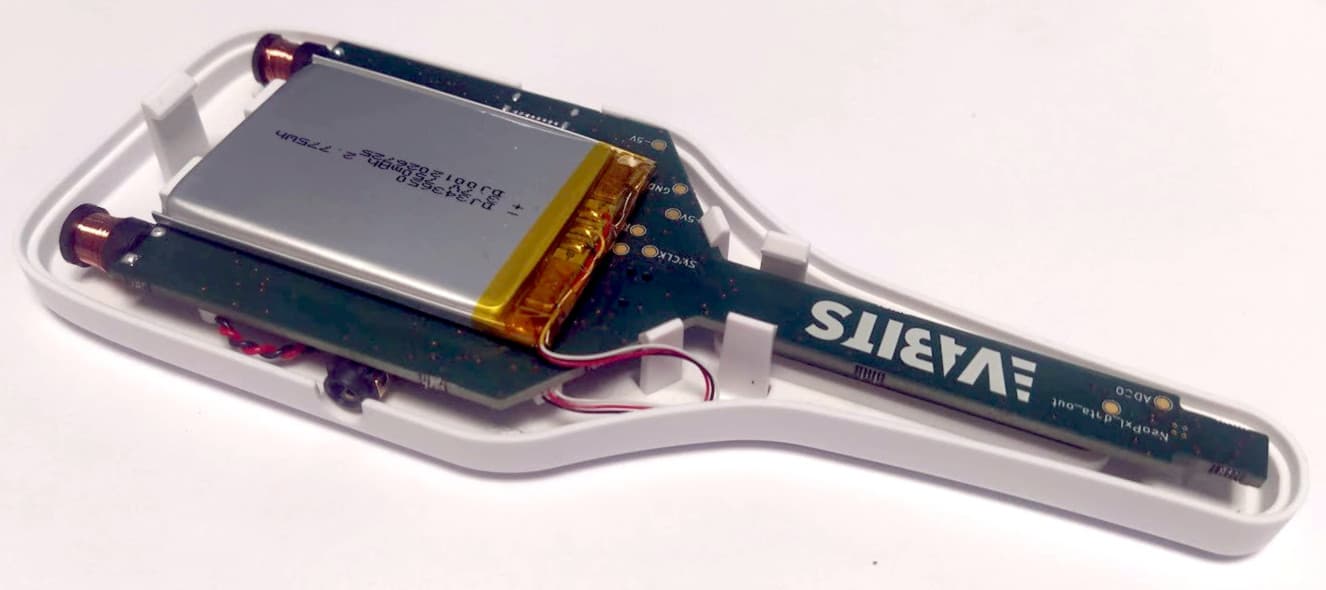
Use the double-sided tape to stick the battery to the bottom side of the PCBA, as shown. Make sure that at least 4 mm of the PCBA sticks out at the PCB edge between the coils. Guide the connector wires to the top and insert the connector into the socket designated “BATT” on the top of the PCBA.

Battery taped to the bottom of the PCBA
Battery connector plugged into the BATT socket

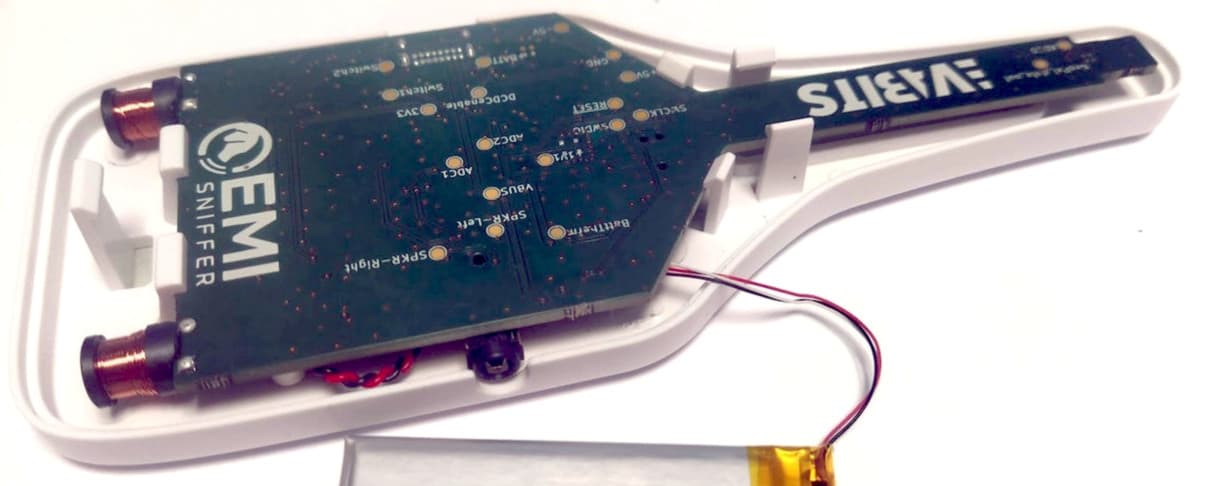
4. Fit the top shell

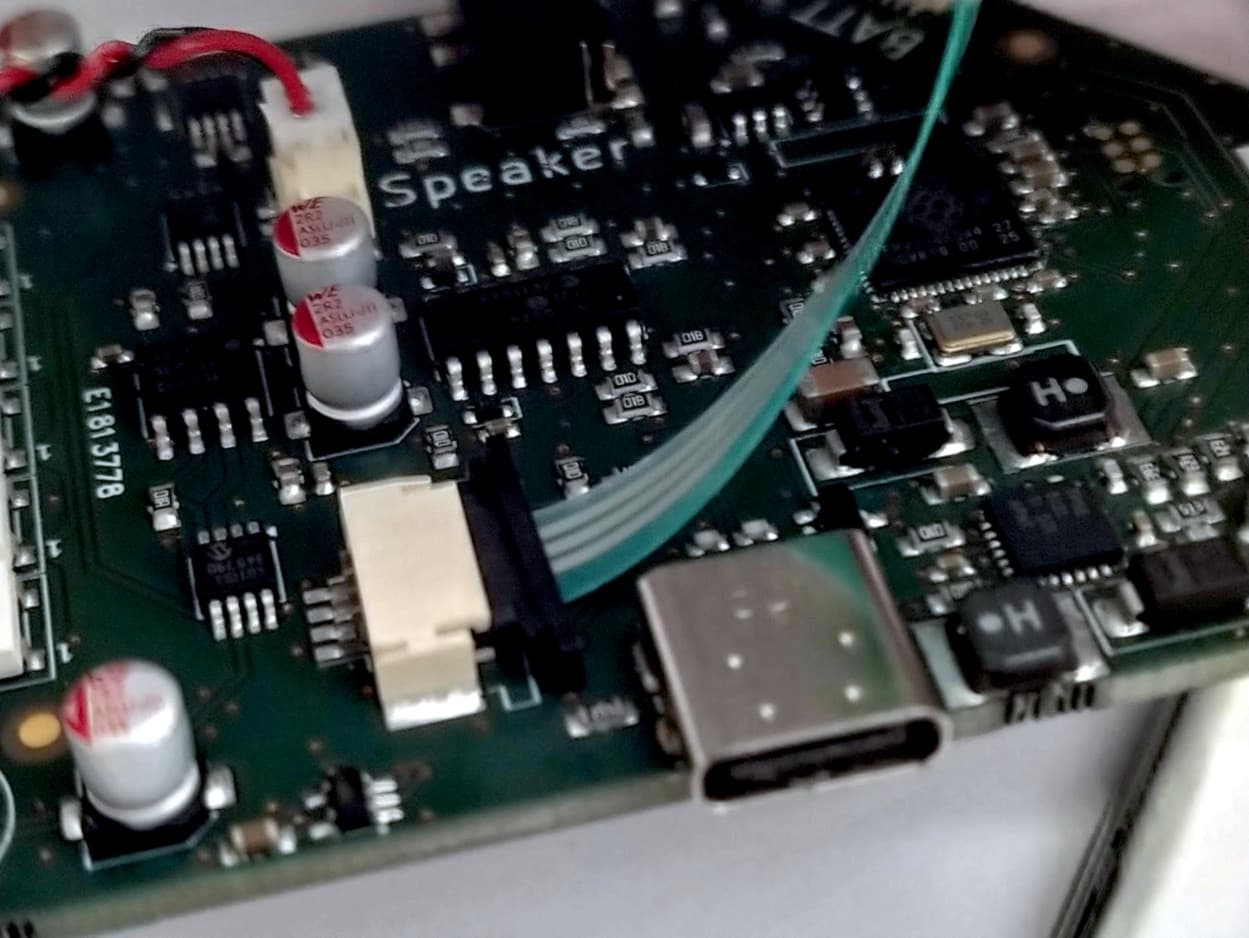
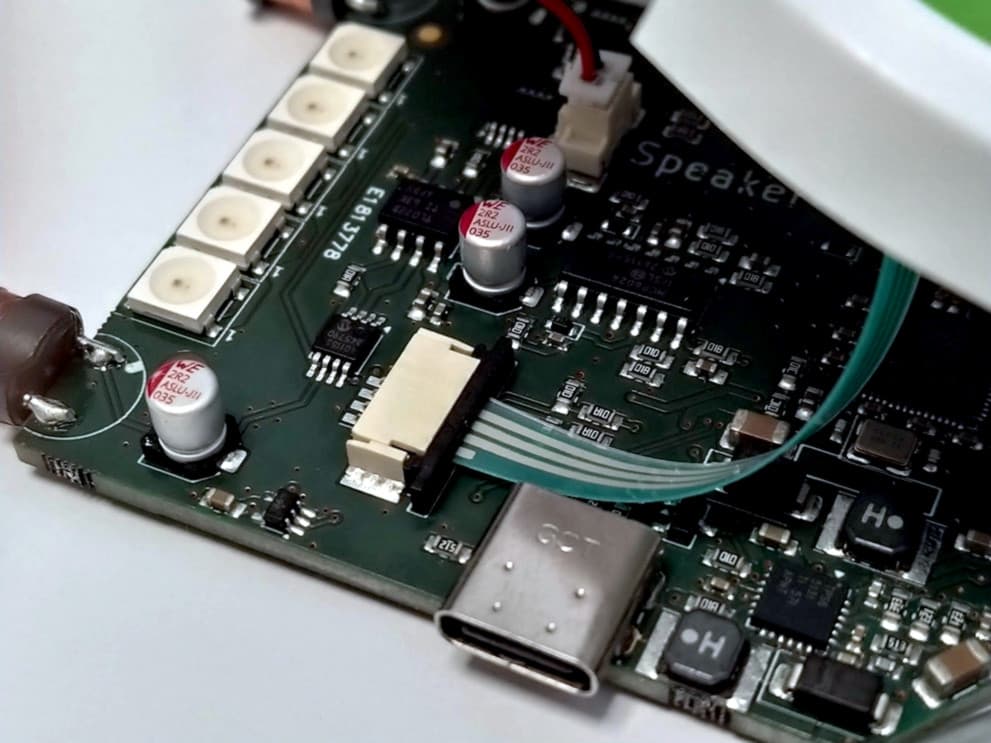
Place the top shell over the electronics, checking that the PCB, speaker and battery remain correctly seated and that all external connectors line up with their openings. Push the black locking bar out of the FPC connector on the PCBA. Make sure the transparent protection piece is removed, and insert the FPC strip, making sure that it goes all the way in. Lock the FPC connector by pushing the black locking bar into the white connector base. Click the PCBA into the top shell. Make sure that the speaker wires are not in front of the five LEDs at the back.

PCBA and battery before fitting the top shell
Inserting the FPC into the board connector
Locking the FPC connector
PCBA clicked into the top shell
Assembled top shell with electronics seated

5. Place the bottom shell

Before closing the enclosure completely, check that the battery connector is fully seated, no wires are trapped between the shells and the PCBA is correctly positioned. Then click the bottom shell into place.

Electronics seated before closing the bottom shell
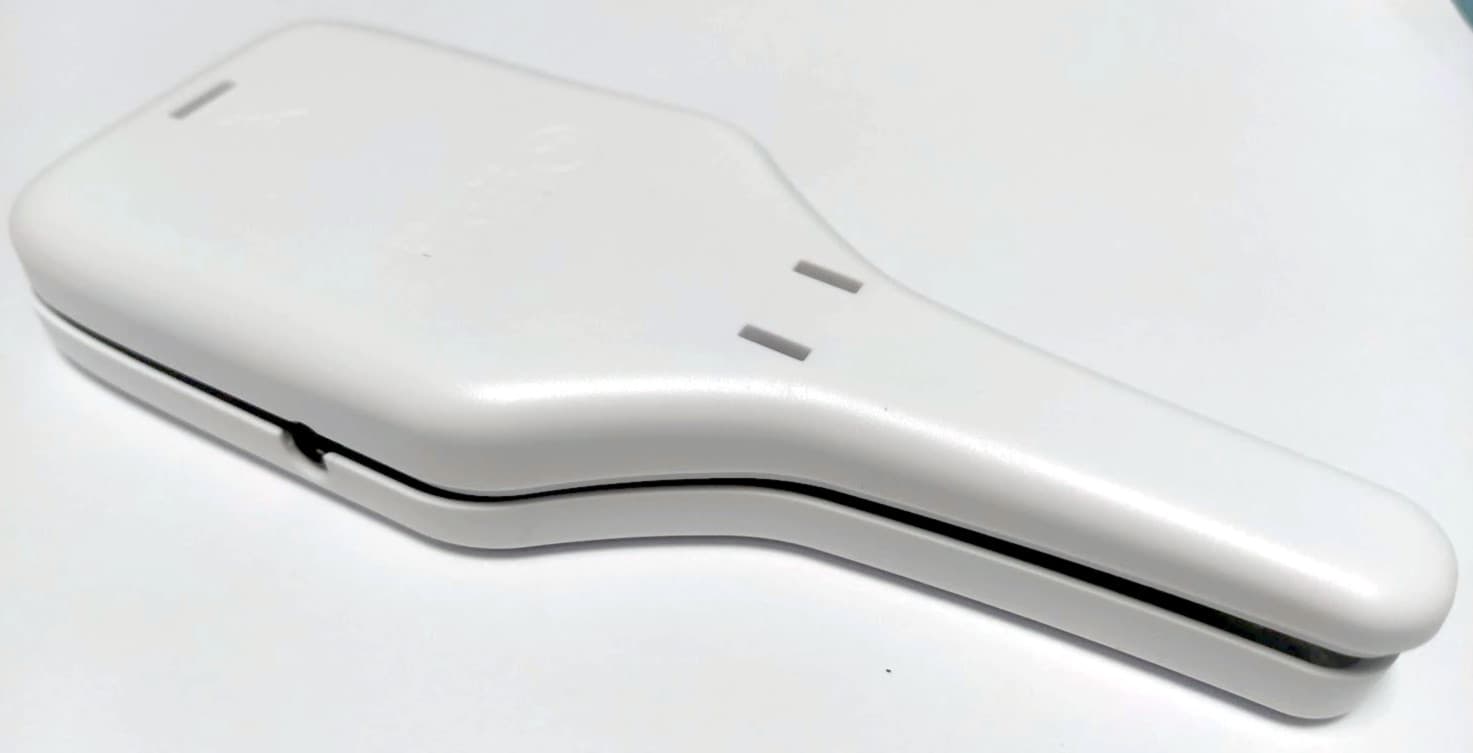
Bottom shell closed on the EMI Sniffer

5. Usage

The EMI Sniffer has two main functions:

  • 1. Detecting electromagnetic interference — The LED bar at the top of the sniffer indicates the strength of the EMI source.
  • 2. Locating cables — Visual feedback is provided by the LED indicators at the bottom of the device, and detected signals can also be heard through the built-in speaker or optionally connected headphones.

EMI detection

The narrow front of the EMI Sniffer contains the EMI detection coil. Bring this end close to the circuit, component or cable you want to investigate.

Move the tip slowly and horizontally across the area being tested. The eight EMI LEDs indicate the relative strength of the detected signal. A stronger indication means that more electromagnetic activity is being detected at that position.

Because the sensor is intended for near-field measurements, distance and orientation have a strong effect on the indication. For useful comparisons, try to keep the position and orientation of the sniffer consistent.

Cable localization

The wider rear section of the EMI Sniffer contains two cable-detection coils. These are used to determine the position of a cable or conductor.

Move the rear of the sniffer across the area where the cable is expected to run. The five cable-localization LEDs provide visual feedback that helps indicate the cable position.

The detected signal is also converted to audio. Listen through the built-in speaker or connect headphones for more detailed listening or when working in a noisy environment.

For the most accurate localization, move the sniffer slowly and keep it at approximately the same distance from the surface.

Audio and headphones

The built-in speaker provides audible feedback from the detected signal. A headphone connection can be used instead of the speaker. This is useful when listening for small changes or when using the EMI Sniffer in a busy exhibition, workshop or laboratory environment.

6. Controls, Charging & USB

Controls

  • Turn on — Press the (+) button briefly.
  • Turn off — Press and hold the (+) button for 4 seconds.
  • Adjust sensitivity — Use the (+) and (-) buttons to adjust the sensitivity of the cable detection only. This also affects the audio volume. In an environment with no excess interference, make sure the bottom LEDs show green. A red LED means the sensitivity is too high: the LED should only be red when near a strong field. When a cable is detected, one of the LEDs will turn red, depending on the angle. When the sensitivity is correctly set up, the device should make a clicking noise when held close to a running electronic device like a laptop, which is the sound of the switches on the device toggling.
  • Center cable detection — Press and hold the (-) button for 4 seconds to reset the cable detection.

Charging

Use USB to charge the internal battery. The LEDs indicate the battery charge level. A walking LED pattern shows that charging is in progress.

USB connection

Connect the EMI Sniffer via USB to charge the battery and access it digitally. Two USB functions become available:

  • Serial port — A virtual serial port appears on the computer. The EMI Sniffer outputs debug messages here. This is particularly useful when developing or modifying the firmware.
  • Storage device — A small USB storage volume also appears. The EMI Sniffer expects a file containing its calibration settings to be stored on this drive.